UGL 101: How Do I…? Pages

You don’t always have to get online to get research help! Kick it old-skool with one of our handouts, packed with great tips!

There’s a page on the UGL website that’s got all the answers for starting, doing and finishing a research project. No, really! Linked from the upper right corner of the UGL homepage, the freshly updated How Do I…? page has all kinds of library and research-related goodness.

Are you having trouble choosing your topic or developing a topic you’ve already chosen? We’ve got pages that can help with that too.
 

Links for help Getting Started, Finding Sources (all kinds!), Evaluating Sources and Citing Sources!

One of the best parts is there are also pages that can help you find all different kinds of information including: 
Need to know which library supports your major? Need help citing your sources? What did we tell you, this page has everything. 
 
And the best part? Most of these pages have customized PDF’s you can download and print for reference later. If you’re feeling even more low-tech, visit the display near the New Books section and Media Commons on the upper level and snag a few handouts—all printed out in bright colors and ready to act as your quick guide.
Special thanks to guest blogger Ashley Booth!
Twitter Linkedin Digg Delicious Email Tumblr Reddit

UGL 101: I-Share

Even though the University library has millions of books (at least 13 million, to be exact), occasionally, you might need a book we don’t have. Especially if you’re looking for books for class at the beginning of the semester. If you find your catalog searches coming up short, the next step is to check out I-Share.
I-Share is a group of libraries in the state of Illinois that swap books with one another. If you find a book in the catalog from an I-Share library, you can request it to be sent to the library of your choice (like the Undergrad Desk, for example). The books usually arrive within a week, and you’ll get an email when it’s ready to be picked up. Then, you just need your I-Card and you can check out the books like normal.

Here are a few steps to follow to search for books in I-Share if you don’t find an item in the Local Catalog:

Start at the Online Catalog (there’s a link right from the UGL homepage, too):

Then change the drop-down menu from “Local Catalog” to “All I-Share Libraries.”

Then, go ahead and search the catalog like normal by keyword, author, title or subject. Once you’ve found an item you’d like to request, check to see its availability by clicking on the title of the book in the results list. Once you’ve clicked on the book title, there will be a screen that shows the locations/availability of the book. You can then click on “Request This Item” (if there’s only one copy available) or “Request 1st Available” if there is more than one copy available.

Once you’ve clicked “Request,” you will be taken to a screen to log in with your MyAccount. Haven’t set up a MyAccount yet? No prob! It’s super easy—check out our blog on MyAccount for more info on setting up yours.

After you’ve logged in, you will see a drop-down menu that allows you to pick which library on campus you’d like to have the book sent. Select the University of Illinois at Urbana-Champaign as the pick-up library, and then whichever specific library you’d like as the pick-up location (Undergrad, Main Stacks, ACES, your residence hall library—whatever makes the most sense for you).

Last, click “Request” and you are all done. Viola! For more detailed instructions (including a demo video!), check out the Library’s page on requesting items that are not at Illinois.

As a note, some items may not be requested through I-Share. If a library won’t send the item, you will get a message before you try to log in. There can be several reasons, including: the item is on reserve at the home library for a class; it’s a media item (DVD, VHS, etc); the item already has a request placed on it by another patron; it’s a text book that the home library wants to keep on campus, etc.

If you run into a problem with requesting books through I-Share or can’t seem to find the item you really need, please stop by the Research Desk in the UGL or Ask A Librarian via chat! We’re always happy to help you track down the items you need!

Twitter Linkedin Digg Delicious Email Tumblr Reddit

UGL 101: Self-Checkout Machines

If you’ve been studying (oh so quietly) on the lower level of the UGL recently, you may have noticed some new hardware on your way in or out.

Those shiny new machines are self-checkout machines where you can check out books or media. Long gone are the days of waiting in line to borrow season three of Lost. Now, armed with your iCard, you can easily check them out yourself.

The machines are super easy to use. Just follow a few simple steps.

1. Scan your I-Card.

Scanning an iCard with the self-check machine

Your iCard is your ticket to the UGL’s entertainment options.

2. Scan your books or media, with the spine of the item sitting in the dip of the scanning area. When you hear a “thump” your item is ready.

Scanning a movie with the self-check machine

Make sure it’s facing this way, so the machine can desensitize your items.

3. The screen will prompt you to select whether or not you’d like a receipt.

Screen shot of the self check machine

It doesn’t matter what you choose, but you do have to make a choice.

4. If you have DVDs or video games, finally, you’ll want to insert them into the unlocker next to the machine. Make sure you hold it with the front of the case facing up, and top of the case going into the machine first. Check to make sure the case will open once the machine gives the case back to you.

Unlocking a dvd using the self-check machine

The unlocker will eat your dvd and spit it back out, ready for you to use!

5. You’re all done! Wasn’t that easy?

If you have problems with using the machines, or just have questions in general, look for the staff member on the lower level to help you. You can ring the bell on the cafe table near the media area for help. And you can always look for our friendly librarians, making the rounds in their “Ask a Librarian” vests.

Twitter Linkedin Digg Delicious Email Tumblr Reddit

UGL 101: Ask A Librarian

UGL 101

Somewhere, in the deep, dark night, a cry goes out for help. A student has an information need, and they can’t make it to the library to get help. Whatever shall they do? There is tearing of hair and rending of garments. All seems lost, until—what’s this? A tiny, yellow image of a running figure? A prompt inviting visitors to share their needs? Could it possibly be…a chat window that connects students to an actual live librarian in real time? It is! Hurrah! The day is saved!

Ask A Librarian Chat Box

A beacon of hope.

Okay, so maybe it’s never that dramatic. Most people don’t actually rip their clothes in frustration when they need help. Sometimes, though, you do have a reference or research question that needs answering right away, and you can’t make it to the library to ask our reference librarians for assistance. When that happens, you can use our handy dandy Ask A Librarian services to get the help you need.

You might have seen the Ask A Librarian chat window, pictured above, on the UGL homepage. It also appears, with some minor variations, on the main library gateway page, and on the search results page within many different databases—look for it! No matter where it shows up, and no matter where you’re surfing from (be it home, a coffee shop, up a tree—wherever!) it will connect you to a live librarian who is ready to help you with your question. Just start typing in the message bar where prompted, press enter, and a librarian will respond. From 9 am to midnight Sunday-Thursday, 9am-5:30pm on Friday and 10am-6pm on Saturday, real librarians sit and eagerly await your inquiries. Go ahead and ask them!

Ask A Librarian Chat Box Alternate Version

The chat box may also look like this. They all work!

If you don’t want to use the chat box we provide on our sites, you can add us on AIM, Yahoo, MSN, or Google Talk, and chat with us that way. Our screen name is the same on all four platforms: askillinois. You can also add the main library to your account; their screen name is askuiuc.

If you’d rather not use IM at all, fear not! We have other ways for you to get in touch with us. For instance, you can also text us! Send your question to 217-686-4361, and we’ll text you back with an answer. Be aware that standard messaging rates apply.

All these options are available to you if you need a librarian and can’t come to the library to ask your question. If you can make it to the library, though, stop by our reference desk and ask us in person! We’re directly in front of you when you enter the main doors, near the circulation desk. You’ll know us by our spiffy blue vests. You can also stop by during Office Hours to get research or writing help—no appointment necessary! Whatever method you prefer—we’ve got you covered.

Twitter Linkedin Digg Delicious Email Tumblr Reddit

UGL 101: Collaboration Rooms

UGL 101

Started a study group for that Chem class? Have a group project you need to get done? Just need a space to work with your buds? The UGL has your back.

One of our most popular features is our 11 collaboration rooms. These rooms are available for student use anytime the UGL is open. We’ve even tricked them out for you: in addition to a table and chairs, each room has a TV, a DVD player (some also have VCRs), jacks for your headphones, and most have a hookup for your laptop. Some of the rooms also have whiteboards, and dry erase markers are available for checkout at the Circulation Desk.

So how can you get into one of these primo study spots? Simple. If you’ve used these in years past, you’ll be stoked to know you no longer need to check out a key! Yeah! But we still recommend you reserve your spot. Just call or come to the UGL to reserve the room you want (and make sure at least one person in your group has their I-Card handy, as you’ll still need to show you’re a student). Make sure when you reserve the room, you know how many people will be in your group and if you’ll need any specific equipment—that way we can set you up in the best one for your group.

A couple things to remember: We’re still booking these in two-hour time slots (they’re in demand, so we’ve gotta share with everyone), and we ask that you don’t sign up for more than two 2-hour blocks a week. Cool? Cool. If you have any questions, we’ll be happy to answer them at the Circulation or Research desks. And remember they fill up fast, so don’t wait until the last minute to make your reservation, or we may be booked.

Coming soon: an online reservation system. Check back with us soon for all the deets about how to reserve your room online.

Picture of a collaboration room

One of our collaboration rooms, just waiting for you!

Twitter Linkedin Digg Delicious Email Tumblr Reddit

UGL 101: Reserves & My Account

UGL 101: An Introduction

So you made it through your first week of class, hopefully with only one wrong turn or two on the way. Now you just have to make sure you have everything you need to have a successful semester. Here at the UGL, we can help with that!

We have plenty of space for you to study, either by yourself or with a group. We have computers, printers and scanners to help you get the semester started on the right foot. You can also check for course resources. Many instructors will put books or films on reserve for classes, and the UGL can help with that, too.

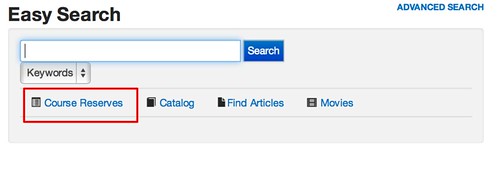
If you need a book (or media item) that your instructor has put on reserve, first you’ll need to search the reserves. You can get to the reserves search page from the UGL homepage:

Image highlighting course reserves link.

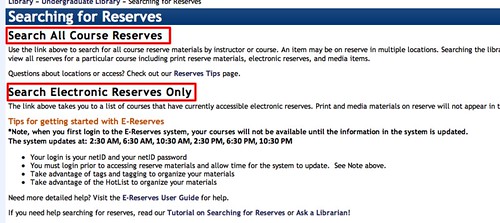
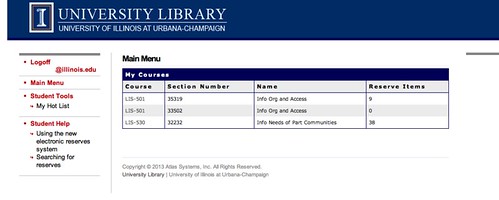
Make sure you know the name of your instructor or the class number (you can search by either). Once you’ve located your reserve item, make sure you write down the Call Number if it’s a book or media item. Books and media are kept at the Circulation Desk (when you go to pick it up, bust out that call number, which is what the library staff need to find the item on the shelf), but there are also reserves online—which you can access from the comfort of your own computer. (Don’t have a computer? You can borrow a laptop or MacBook from the UGL, too, and use them for 2 hours.) Most book and media items on reserve can be checked out for 2 hours at a time, and must be kept in the library.

If you’re having trouble finding a course item on reserve, check out our Reserve Tips page, or Ask A Librarian.


Once you’ve mastered searching for and borrowing books, don’t forget to set up your library account, aka My Account. With this account, you can check due dates for borrowed materials, check the status of requested items, and renew your checked out items, among many other things. Find the link to My Account from the UGL homepage.

Image of My Account link

Once you get to the login page, simply fill in the basic information. It will be helpful to have your iCard on you, because you’ll need the “Library” number listed on the bottom right.

Image of My Account sign up page

Once you’ve signed up, you can use My Account to stay on top of all of your Library activity. And of course, you can always stop by and see us in person. We’re here to help you every step of the way!


Was this info helpful, but it didn’t answer all of your burning questions about how things work in the UGL? Never fear! We’ll be bringing you a series of “UGL 101″ posts on all the “must know” stuff about the library. Stay tuned! (Or leave us your questions in the comments, and we’ll get back to you!)

Twitter Linkedin Digg Delicious Email Tumblr Reddit